Sign in to Mango
Mango Languages is an interactive, conversational language-learning platform that teaches over 70 world languages and dialects. Learn on the go or offline, on desktop, or mobile- absolutely free with the use of your BDL library card!
Why should I use Mango?
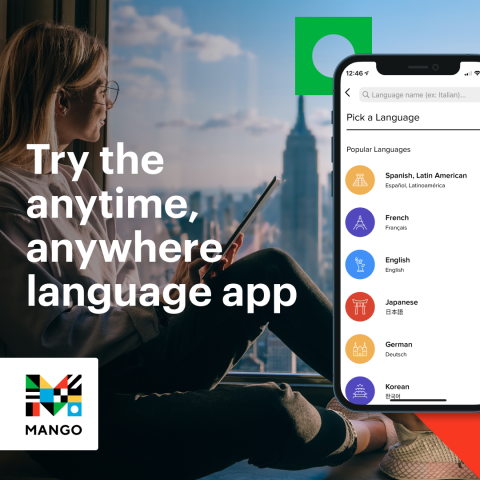
Always wanted to learn a new language? Mango adapts to your unique learning style, so you pick up on new vocabulary, intuit unfamiliar grammatical structure, and train your pronunciation, all while boosting your cultural IQ. Lessons involve a rich mix of listening and reading activities, so you can make sense of written and spoken contexts.
Frequently Asked Questions:
Q: How Do I Get Started with Mango?
A: You will need your library card to create your profile. To use the App, download the Mango Languages app on iOS or Android, tap Sign Up to create a profile, and after selecting the language you want to study, either go through a lesson or tap Skip to Sign Up to immediately create your profile. If you already have a Mango profile, tap Log In at the bottom of the screen and enter your login information.
Search for your Library
- Tap the three horizontal lines in the upper right hand corner.
- In the menu that slides out from the right, tap Unlock More Lessons.
- On the next screen, tap Search in the Find Mango box.
To use on your computer browser, visit Mango online and click sign up. From here you will enter your email address, library card number and create a password.
Q: How many languages can I learn?
A: Mango offers 70 languages, American Sign Language and 12 English as a Second Language courses. See the attached PDF for a full comprehensive list!
Q: What learning materials do they use?
A: Mango uses relevant learning materials that puts your new knowledge into context, boosts your understanding of language structure, and challenges you to practice what you’re learning.
- Critical-thinking exercises
- Memory-building exercises
- Grammar Notes
- Culture Notes
Q: Can you view Lessons offline?
A: Yes! But only if you are using the mobile app. Once you have created your profile and picked a language, you can visit the course menu screen, tap a numbered circle with the download symbol on it to download a single lesson. You can also download all of the lessons in a chapter at once by selecting the Download All option.
If we have not answered your questions, you can find more answers on the Mango FAQ Page, or contacting a library worker who can help you here at support@BranchDistrictLibrary.org.
| Attachment | Size |
|---|---|
| mangolanguages-language-list.pdf | 168.03 KB |